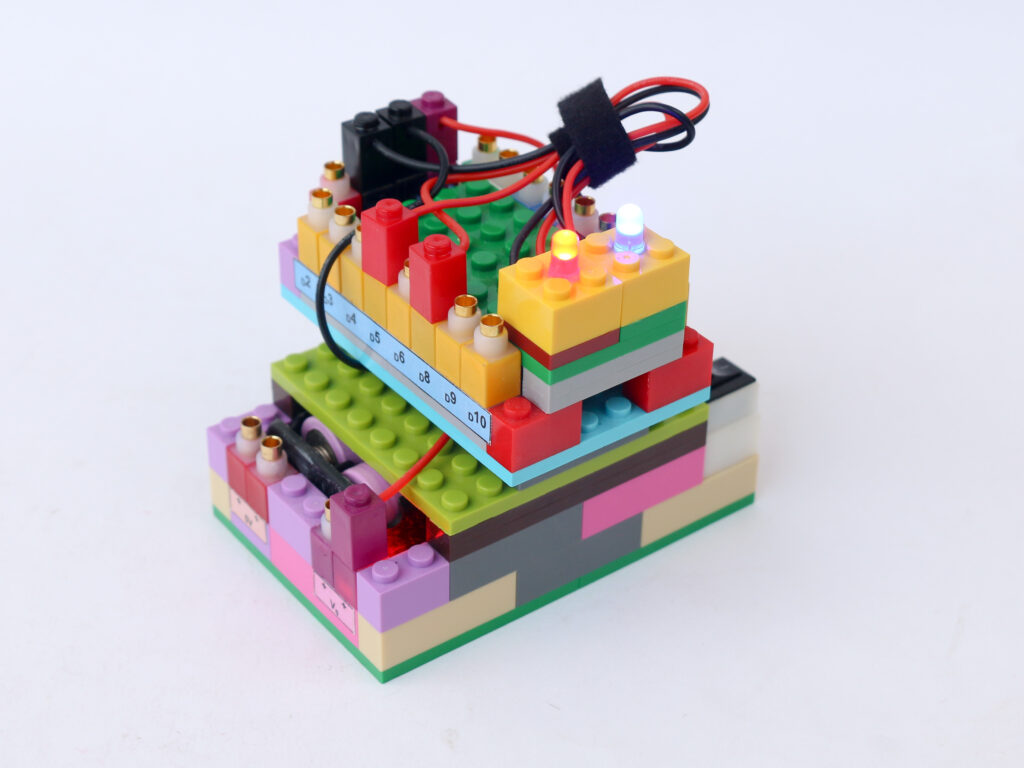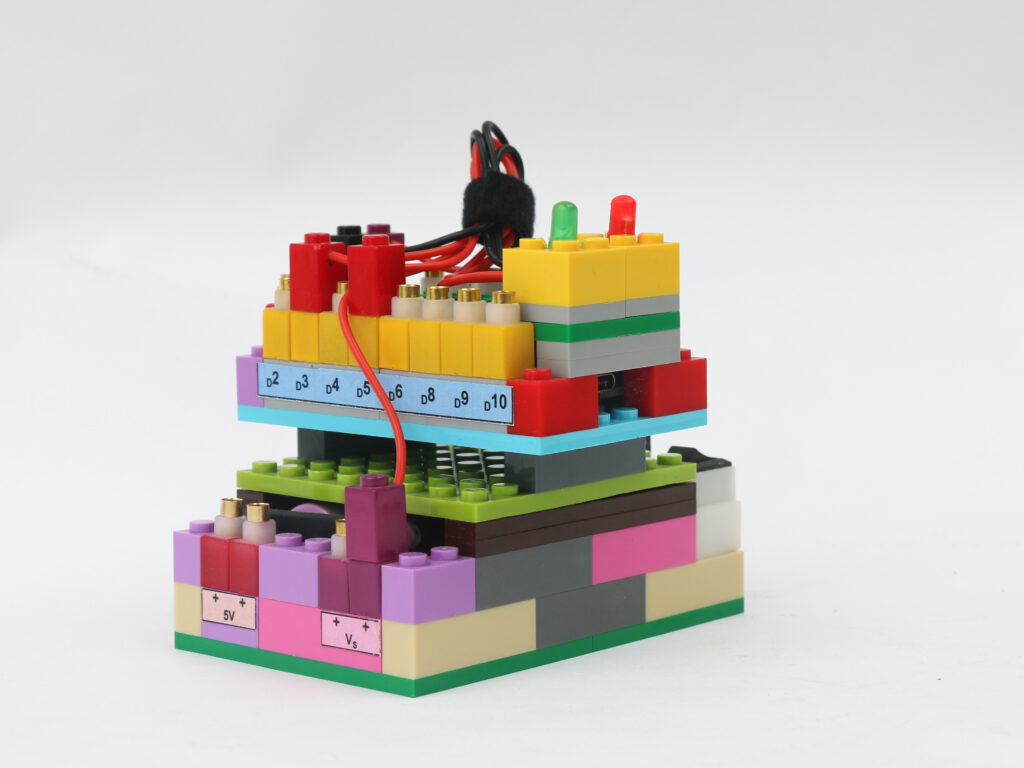
Musical Tunes
In this project we are going to combine art of music with technology. We will utilize a microcontroller to create musical symphony and play it on a speaker.
Music is a combination and sequence of different musical notes. A musical note is a simply a sinusoidal wave with certain frequency. For example, the Indian musical note “Sa” in Madhyam Saptak, which is western musical note C4, is a sinusoidal wave with frequency 261.63 Hz.
In digital electronics, we can create square wave signals which can be used as a substitute for sinusoidal wave. Speaker converts these signals to sound by vibrating a diaphragm with each high and low of the square wave.
We will use microcontroller to create square waves with frequencies matching the musical notes and play them sequentially with certain tempo to create a melody. We are going to create a program to play “Tokyo Drift” theme song in this project.
Components
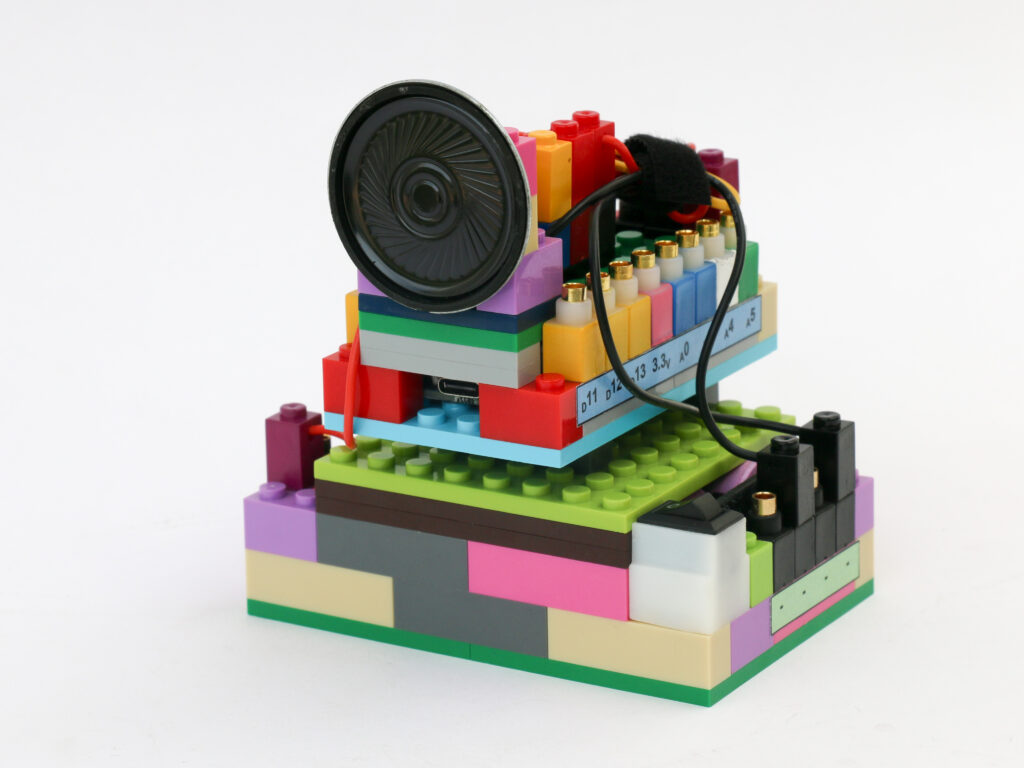
Connections
The blue, red & black pins on the transistor block represent base, collector and emitter of an NPN transistor. We will be using a transistor to allow higher current supply to the speaker without damaging the microcontroller.
Connect the battery block Vs pin to the Vs pin of the microcontroller block. Connect any of black (negative) pins on the battery block to one of the negative (black) pin on the microcontroller block.
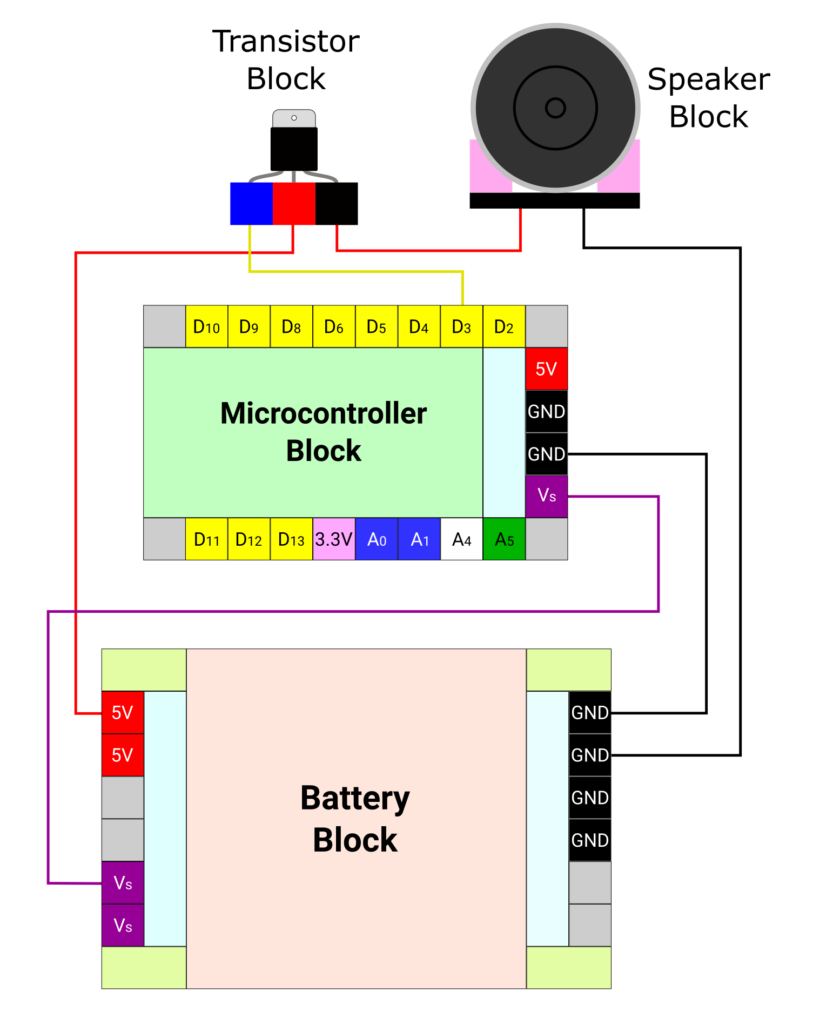
Connect the Connect the microcontroller pin D3 to the blue pin of the transistor. Connect the red pin of the transistor block to the +5V pin of the battery block.
Connect the red terminal of the speaker block to the black terminal of the transistor block and black terminal of speaker block to any of the remaining negative pins on the battery block.
Code
We need to define the musical notes and corresponding frequencies. One option is to include this information in the sketch itself. So all you need to do is copy below information in the sketch and then continue with remaining sketch.
However, if we want to use this information in multiple sketches to create multiple melodies, we can save this information as a library and just call it in our program. use below instructions to do so.
First we need to create a file with all the notes and their corresponding frequencies as below. Open the notepad application on your computer, create a new file and copy below information.
#define NOTE_B0 31
#define NOTE_C1 33
#define NOTE_CS1 35
#define NOTE_D1 37
#define NOTE_DS1 39
#define NOTE_E1 41
#define NOTE_F1 44
#define NOTE_FS1 46
#define NOTE_G1 49
#define NOTE_GS1 52
#define NOTE_A1 55
#define NOTE_AS1 58
#define NOTE_B1 62
#define NOTE_C2 65
#define NOTE_CS2 69
#define NOTE_D2 73
#define NOTE_DS2 78
#define NOTE_E2 82
#define NOTE_F2 87
#define NOTE_FS2 93
#define NOTE_G2 98
#define NOTE_GS2 104
#define NOTE_A2 110
#define NOTE_AS2 117
#define NOTE_B2 123
#define NOTE_C4 131
#define NOTE_CS3 139
#define NOTE_D3 147
#define NOTE_DS3 156
#define NOTE_E3 165
#define NOTE_F3 175
#define NOTE_FS3 185
#define NOTE_G3 196
#define NOTE_GS3 208
#define NOTE_A3 220
#define NOTE_AS3 233
#define NOTE_B3 247
#define NOTE_C4 262
#define NOTE_CS4 277
#define NOTE_D4 294
#define NOTE_DS4 311
#define NOTE_E4 330
#define NOTE_F4 349
#define NOTE_FS4 370
#define NOTE_G4 392
#define NOTE_GS4 415
#define NOTE_A4 440
#define NOTE_AS4 466
#define NOTE_B4 494
#define NOTE_C5 523
#define NOTE_CS5 554
#define NOTE_D5 587
#define NOTE_DS5 622
#define NOTE_E5 659
#define NOTE_F5 698
#define NOTE_FS5 740
#define NOTE_G5 784
#define NOTE_GS5 831
#define NOTE_A5 880
#define NOTE_AS5 932
#define NOTE_B5 988
#define NOTE_C6 1047
#define NOTE_CS6 1109
#define NOTE_D6 1175
#define NOTE_DS6 1245
#define NOTE_E6 1319
#define NOTE_F6 1397
#define NOTE_FS6 1480
#define NOTE_G6 1568
#define NOTE_GS6 1661
#define NOTE_A6 1760
#define NOTE_AS6 1865
#define NOTE_B6 1976
#define NOTE_C7 2093
#define NOTE_CS7 2217
#define NOTE_D7 2349
#define NOTE_DS7 2489
#define NOTE_E7 2637
#define NOTE_F7 2794
#define NOTE_FS7 2960
#define NOTE_G7 3136
#define NOTE_GS7 3322
#define NOTE_A7 3520
#define NOTE_AS7 3729
#define NOTE_B7 3951
#define NOTE_C8 4186
#define NOTE_CS8 4435
#define NOTE_D8 4699
#define NOTE_DS8 4978
#define REST 0
- Save this file as pitches.h with type as .txt format.
- Open Arduino IDE and go to File > Preferences to find your “Sketchbook location”.
- Navigate to that location on your computer and open the
librariesfolder within it. - Inside the
librariesfolder, create a new folder namedpitches. - Place the
pitches.hfile inside the newpitchesfolder. - Close and restart the Arduino IDE so it can detect the new library.
- You can now go to Sketch > Include Library to see
pitchesin the list of available libraries.
We define the pin D3 as speaker pin. We also create a variable called songSpeed to adjust the tempo or the speed at which the notes are played.
We define an array called “melody” with the sequence of notes. 0 is for breaks where no note is played. Similarly, we create an array to hold the duration information of each note. A full note is played for 1000ms; half note is 500ms; quarter note is 250ms and so on.
In the setup section, we define speaker pin as output pin. The in the loop section, we first find how many notes are on the melody. Then we create a for loop to play each note one at a time with duration for each note. The function tone() creates a square wave of defined frequency for a defined period and is used to play each note.
/*
   Makernova Robotics 2025
   In this program we use microcontroller to create musical notes by creating square waves
 of certain frequencies and play it with the speaker
*/

// The notes information could be added here directly instead of creating a library

//predefined notes and corresponding frequencies
#include<pitches.h> // comment it if you are copying the notes information directly

// Define pin 3 for speaker, you can use any other digital pins
const int speakerPin = 3;

// Change to 0.5 for a slower version of the song, 1.25 for a faster version
const float songSpeed = 1.0;

// notes in the melody:
// for different tunes, copy/paste notes in this array
int melody[] = {
  NOTE_AS4, REST, NOTE_AS4, REST, NOTE_AS4, REST, NOTE_AS4, REST,
  NOTE_AS4, NOTE_B4, NOTE_DS5,
  NOTE_AS4, REST, NOTE_AS4, REST,
  NOTE_AS4, NOTE_B4, NOTE_DS5,
  NOTE_AS4, REST, NOTE_AS4, REST,
  NOTE_AS4, NOTE_B4, NOTE_DS5,
  NOTE_AS4, REST, NOTE_AS4, REST,
  NOTE_AS4, NOTE_B4, NOTE_DS5,
  NOTE_F5, REST, NOTE_F5, REST,
  NOTE_GS5, NOTE_FS5, NOTE_F5,
  NOTE_AS4, REST, NOTE_AS4, REST,
  NOTE_GS5, NOTE_FS5, NOTE_F5,
  NOTE_AS4, REST, NOTE_AS4, REST,
  NOTE_AS4, NOTE_B4, NOTE_DS5,
  NOTE_AS4, REST, NOTE_AS4, REST,
  NOTE_AS4, NOTE_B4, NOTE_DS5,
  NOTE_AS4, REST, NOTE_AS4, REST,
  REST
};


// Durations of each music note of the song
// 1 is full note, 2 is half note, 4 is quarter note etc. is when songSpeed = 1.0
int durations[] = {
  4, 4, 4, 4, 4, 4, 4, 4,
  3, 3, 4,
  4, 4, 4, 4,
  3, 3, 4,
  4, 4, 4, 4,
  3, 3, 4,
  4, 4, 4, 4,
  3, 3, 4,
  4, 4, 4, 4,
  3, 3, 4,
  4, 4, 4, 4,
  3, 3, 4,
  4, 4, 4, 4,
  3, 3, 4,
  4, 4, 4, 4,
  3, 3, 4,
  4, 4, 4, 4,
  1
};

void setup() {
   pinMode(speakerPin, OUTPUT);
}

void loop() {
  //count the number of notes in the melody
  const int size = sizeof(durations) / sizeof(int);

  // iterate over the notes of the melody:
  for (int note = 0; note < size; note++) {

      const int currentNote = melody[note];

     //to calculate the note duration, take one second divided by the duration divided by speed
     //e.g. for speed 1, quarter note = 1000 / 4, eighth note = 1000/8, etc.
     float duration = (1000 / durations[note]) / songSpeed;

     if (currentNote != 0) {
      tone(speakerPin, melody[note], duration);
    } else {
      noTone(speakerPin);
    }
     // delay is used to wait for tone to finish playing before moving to next loop
     delay(duration);
  }
}
We can create many different melodies just by replacing the arrays melody and durations. There are many creators who have created variety of melodies. You can visit the link to see those. Just copy and paste required melody and durations array in the program to play that melody.